
Photo Recover Fast
Aivora GreenTools
4.020.00 Reviews
- Version
- 1.5.0.0
- Installs
- 100.00K
- Age Rating
- Everyone
Screenshots
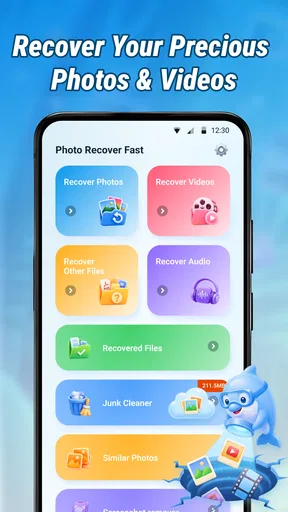
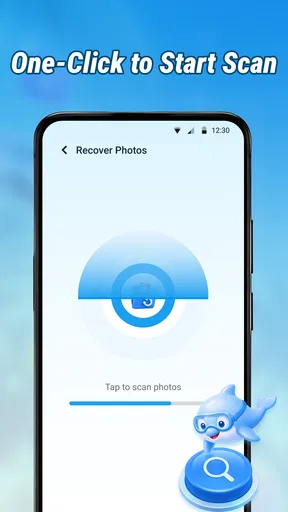
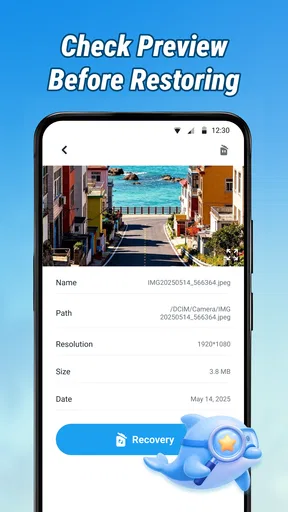
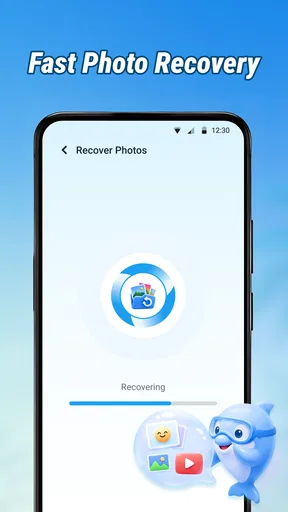
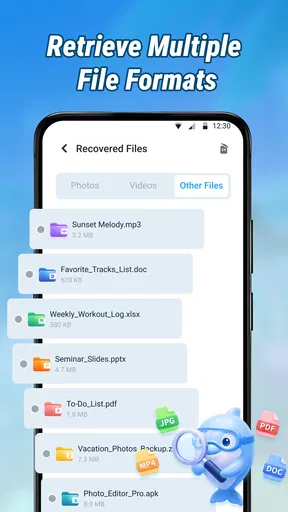
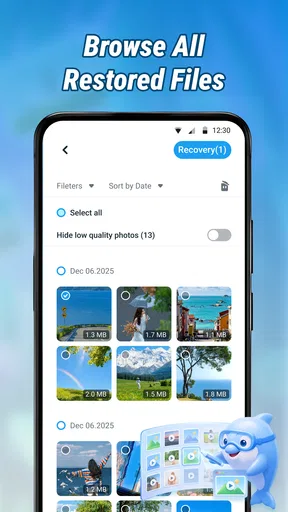
Our Review of Photo Recover Fast
 Analysis by Appyee
Recovering a deleted photo is usually a race against time. The longer I keep using a phone after deleting something important, the more likely it becomes that new files will occupy the space where the old one was stored. That is why Photo Recover Fast caught my attention as a focused Android tool from Aivora Green. Its purpose is simple: help look for deleted photos and documents on an Android device, without presenting itself as a full file-management suite.
I approached it as I would any recovery utility: not by expecting magic, but by asking whether it makes the first recovery attempt quick, understandable, and practical. The app is free, rated for Everyone, and currently sits at a 4.0 average from around 180 ratings. Those figures suggest a useful but not universally perfect experience, which matches my own view of this kind of tool: it can be worth trying when a file has just disappeared, but it should not replace sensible backups.
What the first recovery attempt feels like
The strongest idea behind Photo Recover Fast is immediacy. When I realize that a picture or document has been deleted, I do not want to browse through complicated storage menus or learn a technical recovery process first. A tool built around finding lost personal files needs to make the initial search feel direct, and this app’s narrow focus works in its favor.
Speed here should be understood as the time needed to begin checking the device, not as a promise that every scan will finish instantly. The result depends on how much storage the phone has, how many files are present, and how much activity has happened since deletion. A recently removed photo is a more realistic target than an old file that has already been overwritten.
My practical advice is to stop creating new content before starting a recovery attempt. Avoid recording video, downloading large files, installing several apps, or repeatedly clearing storage. Those actions can make recovery less likely, regardless of which utility is used. Opening Photo Recover Fast early, choosing the relevant search option, and reviewing what it finds is a much better workflow than waiting until the phone has been heavily used.
The short description, “Photo Recover Fast,” sets a clear expectation about the main job, but I would still treat the document-recovery wording as a reason to test the results carefully. A file appearing in a scan does not automatically mean it will be complete, readable, or the exact version I wanted. Recovery tools can locate remnants, duplicates, thumbnails, or files with confusing names, so speed is useful only when followed by careful checking.
Why a focused tool can be easier than the usual alternatives
The usual alternatives are the phone’s recycle bin, a cloud backup, a gallery’s recently deleted folder, or a general file manager. Those options are often better when the deleted item is still available in a temporary holding area or was synchronized before removal. They can also preserve the original organization and quality more reliably than a recovery scan.
Photo Recover Fast becomes more interesting when those ordinary routes do not help. Its value is in giving me another place to look on the device itself. That makes it a sensible second step after checking the gallery and backup services, rather than the first tool I would use for every deletion.
There is also a useful distinction between photos and documents. A photo can often be recognized visually, while a document may need to be opened in the correct application before I know whether it is usable. I would therefore review recovered documents in a separate folder and rename them only after confirming their contents. This small habit prevents an unclear recovered filename from being mistaken for the original.
How it behaves during heavier phone use
A recovery app is most valuable during an inconvenient moment: after an accidental deletion, a failed file transfer, or a rushed cleanup. That is also when I am most likely to multitask, switch between apps, take calls, and continue using the phone. A scan can feel less convenient if it competes with those activities, especially on an older or nearly full device.
I would run the search when the phone is idle, connected to power if necessary, and not busy with downloads or camera work. This is not because Photo Recover Fast is known to be unusually demanding; rather, scanning storage is the kind of task where competing activity can make any tool feel slower and less predictable. Keeping the screen available also makes it easier to inspect results as they appear instead of accepting everything blindly.
Heavy use creates another problem: clutter. If the app finds many similar images, the recovery list can become difficult to judge. A practical approach is to start with the most relevant location or file type if the interface offers that choice, then inspect a small group before attempting a broad search. I would avoid recovering every result at once. Selecting only the files I recognize reduces duplicate clutter and makes it easier to confirm what was actually restored.
One non-obvious trade-off is that a broad search may improve the chance of finding an overlooked item while making the final review more tiring. A narrower search is easier to manage but may miss a file stored somewhere unexpected. For a single deleted photograph, I prefer the narrowest sensible route first. For a missing folder of mixed documents, I would accept a wider search and allow extra time for sorting.
Resource demands matter most on phones with limited free storage. Even when the search itself does not appear large, recovered copies need somewhere to be saved. Before starting, I would remove temporary downloads or move existing media elsewhere, but I would not perform an aggressive cleanup that might overwrite or alter the very files I am trying to recover. The safest preparation is targeted: create working space without repeatedly manipulating the affected storage.
What to do when the first scan is disappointing
If the first results are empty, I would not immediately assume the app is broken. The deletion may have happened too long ago, the storage may have been reused, or the file may never have been stored locally in the first place. A picture that existed only in a messaging service or cloud account is better recovered from that service than from an on-device scan.
I would also check whether the missing item is actually hidden in a gallery folder, a download location, or a temporary deleted-items area. Sometimes “deleted” really means moved, filtered, or no longer displayed by the gallery. Photo Recover Fast is most relevant after those straightforward possibilities have been checked.
If the scan produces partial images or files that cannot open, I would save only the results that appear valid and compare them with backups, message attachments, or copies on another device. Repeating the same scan many times is unlikely to create a better original if the storage has already changed. The useful lesson is to treat each attempt as an opportunity to identify what remains, not as a guarantee of reconstruction.
Reliability, stability, and the limits of recovery
For me, reliability in this category has two parts. The first is app behavior: it should open, remain usable during a search, and present results without making the process confusing. The second is recovery accuracy: the files it identifies should be recognizable and worth saving. A smooth interface cannot compensate for damaged or incomplete results, and a technically promising scan is frustrating if the app becomes unstable before I can review it.
Photo Recover Fast is currently at version 1.5.0.0, so I would keep it updated through the normal Android app channel rather than relying on an old installation. Updates can matter for compatibility as Android storage behavior changes, although the version number alone does not tell me how the app will behave on every phone. I would judge stability over the first complete scan instead of assuming that a single successful launch proves everything.
The app has passed the threshold of over 100,000 installs, which gives it more practical visibility than an obscure recovery utility. Still, install volume is not proof that a particular deleted file can be recovered. The 4.0 average is a useful signal to keep expectations balanced: many people may find it helpful, while others may encounter limitations tied to their device, storage layout, or the age of the deleted file.
Privacy is another reason I would be deliberate. Photos and documents can contain personal information, and any recovery tool deserves the same caution as a file manager. I would review the app’s requested access during installation and avoid recovering sensitive material into a shared folder if other people use the phone. I would also delete failed, duplicate, or unwanted recovered copies after checking them, since recovery attempts can leave behind more personal material than expected.
A particularly important reliability tip is to verify the recovered file before deleting anything else. I would open a photo at full size, check whether it has visual damage, and try the appropriate application for a document. Only after that confirmation would I consider the recovery complete. A thumbnail that looks correct may not represent a usable full file.
Where Android compatibility changes the experience
The listed minimum operating system is Android 7.0, which makes the app accessible to a broad range of devices. That does not mean every phone will expose storage in exactly the same way. Android versions, manufacturer gallery apps, removable cards, encrypted storage, and newer permission rules can all affect what a recovery utility is able to inspect.
On a recent phone, I would expect the app to work within the storage access that Android allows, but I would not assume it can reach every protected application folder. On an older phone, the wider access may be useful, yet performance can feel slower if the device has modest hardware or a crowded storage system. The best experience is likely to come from a phone that is reasonably responsive, has free space for recovered copies, and has not been heavily used since deletion.
Removable storage deserves special care. If the missing file was on a memory card, I would avoid taking new photos or moving files onto that card before attempting recovery. If the item was stored inside an app’s private area, a general recovery tool may not be the right solution; the original app’s backup or export function could be more effective.
There is also a practical difference between recovering a photo and recovering a document. Photos are easier to identify by preview, while documents may have several similar versions and may depend on a particular office, PDF, or archive application. I would use the app to locate candidates, then validate them outside the recovery screen. That extra step is essential if the document matters for work, school, or administration.
Who should use it and who should choose another route
I would recommend trying Photo Recover Fast when a personal photo or document has recently disappeared from an Android phone, the gallery’s deleted folder has not helped, and there is no obvious backup. It is especially suitable for someone who wants a straightforward recovery attempt rather than a desktop-based forensic workflow. Being free also lowers the barrier to testing it before spending money on a more specialized service.
I would not make it my main plan for irreplaceable files. If a family archive, business document, or important project is involved, I would first check cloud synchronization, computer backups, messaging attachments, external drives, and the original source. Those alternatives are often more dependable because they preserve a separate copy instead of trying to reconstruct one from the same device.
I would also skip it as a routine cleaning companion. A recovery tool is not automatically a backup tool, gallery organizer, or secure archive. Installing it after every deletion would not solve the underlying problem. The better long-term habit is to keep important photos synchronized or copied elsewhere and use this app as an emergency option when that habit has failed.
For an everyday scenario, imagine deleting a document while clearing a crowded Downloads folder, then noticing later that it was needed for an appointment. I would stop downloading files, check the phone’s deleted-items area, look in the relevant cloud account, and then use Photo Recover Fast for a focused search. Afterward, I would open the recovered document, save a clearly named copy in a safe location, and create a second backup. That workflow uses the app where it is strongest without treating it as the only safety net.
My performance verdict
My overall impression is that Photo Recover Fast is best judged as a quick, focused attempt rather than a guaranteed rescue system. Its strengths are its clear purpose, free access, broad Android compatibility starting at Android 7.0, and usefulness as an alternative when the normal recycle-bin and backup routes fail. The developer, Aivora Green, has kept the concept easy to understand, which matters when the user is already stressed about losing a file.
The main limitation is inherent to on-device recovery: the app cannot promise that deletion is reversible, particularly after continued phone use or storage replacement. Search results may require careful sorting, and a recovered item still needs to be opened and checked. For large searches, I would expect patience and enough free space to matter more than the app’s name suggests.
So, would I keep it available? Yes, as a lightweight emergency option on an Android phone, provided I also maintain backups. I would try it soon after an accidental deletion, use it with minimal device activity, and judge success by the quality of the recovered file rather than by whether a result merely appears. Its real value is giving you a fast second chance, not replacing a reliable backup routine.
At no cost and with an Everyone age rating, it is easy to justify a careful trial for the right situation. Just remember the boundary: when the file is truly important, Photo Recover Fast should be one step in a recovery plan, not the entire plan.
Verdict
Strengths of Photo Recover Fast
- Simple interface makes recovery tools easy to find and use.
- Can scan common image folders quickly on many Android devices.
- Useful preview option helps select photos before restoring them.
- May recover recently deleted images without requiring technical knowledge.
- Lightweight design is suitable for phones with limited storage space.
Limitations of Photo Recover Fast
- Recovery success depends heavily on how long ago photos were deleted.
- Deep scans may take time and use noticeable battery power.
- Some recovered images may have reduced quality or missing metadata.
- Results can include duplicates, cached images, or unrelated files.
- Advanced recovery features may be restricted behind in-app purchases.
Similar Picks in This Category
View All
Google LLC4.0

Gboard - the Google Keyboard
Google LLC4.5

Google Play services
Google LLC4.3

Google Play Store
Google LLC4.9

Files by Google
Google LLC4.5

SHAREit: Transfer, Share Files
Smart Media4U Technology Pte.Ltd.4.3
Frequently Asked Questions
What is Photo Recover Fast and what does it do?
Photo Recover Fast is designed to help users locate and restore photos that may have been accidentally deleted from an Android or iOS device. After installation, the app typically scans available storage for recoverable image files and presents potential results for review. Its effectiveness depends on how long ago the photo was deleted, whether the storage space has been reused, and the permissions granted to the application.
Can Photo Recover Fast recover every deleted photo?
No recovery application can guarantee that every deleted photo will be restored. Photo Recover Fast may find images that remain in accessible storage areas, but files can become permanently unrecoverable when new data overwrites them, when the device automatically removes cached thumbnails, or when the operating system restricts access. For the best chance of success, stop taking photos and avoid downloading large files before running a scan.
Does Photo Recover Fast require root access or special permissions?
The permissions required may vary according to the device, operating system, and recovery features being used. Basic scanning may work without root access, but deeper searches on some Android devices can require elevated permissions or may be limited by system security. The app may also request access to photos, media, or device storage. Review each permission carefully and only grant access that seems necessary.
Is Photo Recover Fast free to use, and are there in-app purchases?
Photo Recover Fast may offer a free installation with limited scanning, previews, or recovery options, while advanced tools can be available through advertisements, subscriptions, or one-time in-app purchases. Before confirming payment, check the current listing for pricing, trial conditions, renewal details, and refund policies. Availability and costs can differ between Android and iOS versions or by region.
Is it safe to use Photo Recover Fast for private photos?
Before scanning personal images, users should review Photo Recover Fast’s privacy policy, developer information, requested permissions, and data-handling practices. A trustworthy recovery tool should clearly explain whether scans occur locally or whether files are uploaded to a server. Avoid granting unnecessary access, and do not use unofficial versions downloaded from unknown websites, since modified apps may contain malware or misuse private media.
